SQLiter Interactive Demo
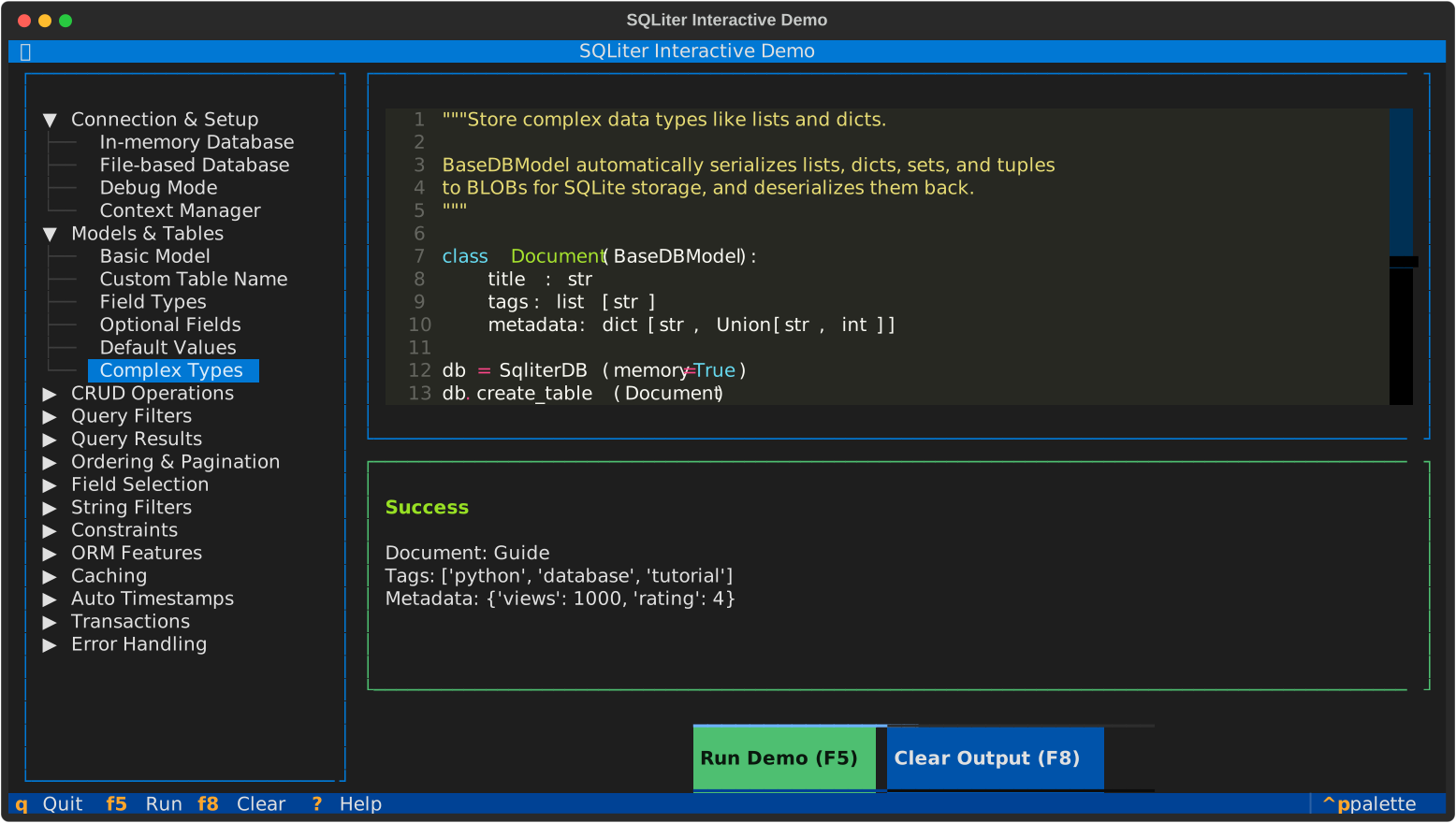
The SQLiter Interactive Demo is a terminal-based Textual TUI application that provides a hands-on, interactive way to explore SQLiter's features. Through a collection of runnable code examples, you can learn how to use SQLiter effectively without writing any code yourself.
Features
- Interactive Demo Browser: Navigate through categorized demo examples using an intuitive tree view
- Live Code Display: View the complete source code for each demo with syntax highlighting
- One-Click Execution: Run demos directly within the TUI and see real output
- Organized Categories: Demos are grouped by feature area for easy exploration
- Vim-Style Navigation: Support for j/k keys for navigation (in addition to arrow keys)
Installation
The TUI demo is included with SQLiter when you install it with the optional demo (or full) extra:
With uv:
uv add sqliter-py[demo]
Or if you are using pip:
pip install sqliter-py[demo]
Running the Demo
To start the interactive TUI demo, simply run:
python -m sqliter.tui
Or if you have SQLiter installed:
sqliter-demo
Navigation
Keyboard Shortcuts
| Key | Action |
|---|---|
Up / Down or j / k | Navigate demo list |
Left / Right or h / l | Collapse/expand category |
Enter | Select demo to view code |
F5 | Run selected demo |
F8 | Clear output panel |
Tab | Move focus between panels |
? or F1 | Show help screen |
q | Quit application |
Mouse Support
- Click on categories to expand/collapse them
- Click on demo names to select and view their code
- Click the "Run Demo" button to execute the selected demo
- Click the "Clear Output" button to clear the output panel
Demo Categories
The demos are organized into the following categories (in the order they appear in the TUI):
Connection & Setup
Learn different ways to connect to SQLite databases, including in-memory and file-based databases.
Models & Tables
Understand how to define Pydantic models for your database tables, including field types and constraints.
CRUD Operations
Basic Create, Read, Update, and Delete operations for managing your data.
Query Filters
Query your data using various filter operators like equals, greater than, less than, and more.
Query Results
Different ways to fetch results: single records, all records, or using pagination.
Ordering & Pagination
Sort your query results and use limit/offset for pagination.
Field Selection
Control which fields are returned in your queries to optimize performance.
String Filters
Special filtering options for string fields, including starts with, ends with, and contains.
Constraints
Define database constraints like unique fields and foreign key relationships.
ORM Features
Advanced ORM features including foreign keys, relationship loading, and with_count() projection reporting.
Caching
Improve performance by caching query results with TTL (Time To Live) support.
Auto Timestamps
Automatically track when records are created and last modified.
Transactions
Group multiple operations into atomic transactions for data consistency.
Error Handling
Understand common errors and how to handle them properly.
Tips for Learning
- Start with Connection and Models: Before diving into queries, understand how to connect to databases and define your data models.
- Read the Code First: Each demo displays the complete source code - read it before running to understand what will happen.
- Experiment: After running a demo, think about how you might modify it for your use case.
- Follow the Flow: The categories are ordered from basic to advanced - follow them in sequence for the best learning experience.
- Check the Output: The output panel shows real results - pay attention to what's returned and how it's formatted.
Next Steps
After exploring the interactive demo, check out the Guide for detailed documentation on each topic.
Tip
The interactive demo is also a great way to quickly look up syntax - just find the demo that matches what you want to do, and copy the code pattern!